Understanding HTML tags and Elements
Introduction
Every time you browse the web, you are interacting with a structure built on HTML (HyperText Markup Language). If a website were a house, HTML would be the foundation and the wooden framing—the "skeleton" that holds everything together. Without it, there would be no buttons to click, no images to see, and no text to read.
It provides the essential structure.
HTML tags
In the world of coding, a tag is a specific instruction used to tell the browser how to display a piece of content. Tags are easily recognizable because they are always wrapped in angle brackets (< >).
Think of a tag as a label on a box. The label tells you what’s inside and how it should be handled.
Tags tell your web browser how to display content—whether text should be a heading, a paragraph, a link, or an image.
The basic structure looks like this:
<tagname>Content goes here...</tagname>
For example, to create a paragraph:
<p>This is a paragraph of text.</p>
Opening tag, Closing tag and Content
Most HTML tags come in pairs: an opening tag and a closing tag.
Opening Tag: Consists of the element name surrounded by angle brackets (e.g.,
<p>). It tells the browser where the element starts.Content: The actual text or media that will appear on the page.
Closing Tag: Looks like the opening tag but includes a forward slash before the element name (e.g.,
</p>). It tells the browser where the element ends.
HTML elements
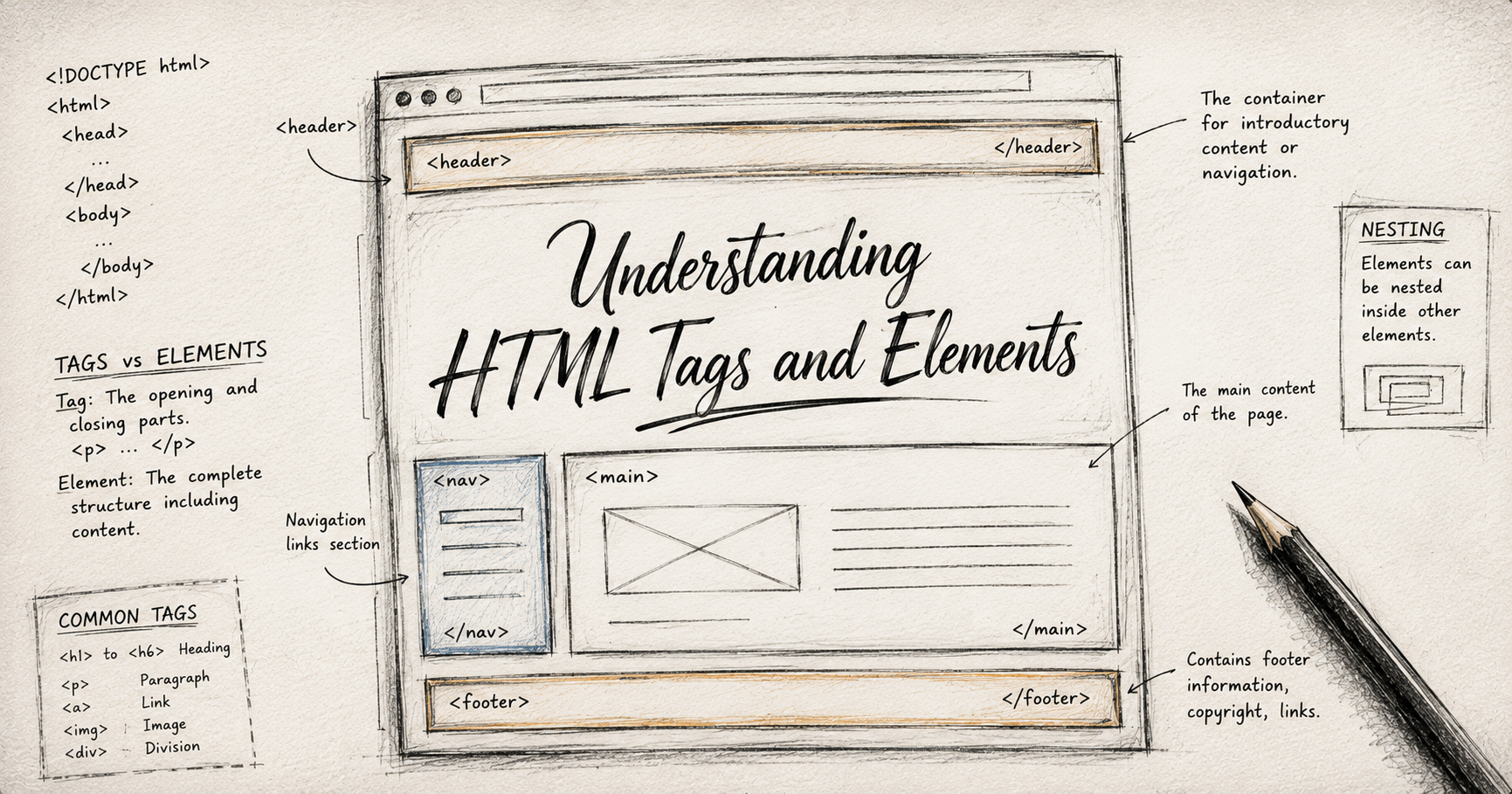
An HTML element is the entire component, consisting of the opening tag, the content, and the closing tag.
If a tag is a single brick, an element is the completed wall.
Self-Closing (Void) Elements
Not all elements need a closing tag. Some elements don't contain any text or other elements; they simply represent a specific piece of data or a structural break. These are called Void Elements.
<img>: Used to pull an image into the page.<br>: Used to create a simple line break (like pressing 'Enter' in a document).<input>: Used to create fields where users can type.
Block-level vs. Inline Elements
To build a clean layout, you must understand how elements sit next to each other on the screen.
Block-level Elements
These elements always start on a new line and take up the full width available (like a brick in a wall).
Examples: <div>(a generic container), <h1>(headings), and <p1>(paragraphs).
Inline Elements
These elements only take up as much space as their content requires. They sit "in line" with other elements without forcing a new line.
Examples: (used for styling specific words) and (hyperlinks).
Tag vs. Element: What’s the Difference?
While people often use these terms interchangeably, there is a distinct difference:
The Tag: Refers only to the markers (the
<p>or the</p>).The Element: Refers to the entire package—the opening tag, the content in the middle, and the closing tag.
Commonly Used HTML Tags
Here are the most essential tags you’ll use in almost every project:
<h1>to<h6>: Used for headings.<h1>is the main title of your page.<p>: Used for standard paragraphs of text.<div>: A "division" or container used to group other elements together for styling.<a>: The anchor tag, used to create links to other websites or pages.<ul>and<li>: Used to create bulleted lists (Unordered Lists).