How a Browser Works
A Beginner-Friendly Guide to Browser Internals
Introduction
Have you ever wondered what actually happens when you type a URL like google.com into your address bar and hit Enter? In less than a second, a beautifully styled, interactive webpage magically appears on your screen.
But behind the scenes, it isn't magic—it’s an incredibly coordinated task performed by a collection of complex software systems working together. Let’s peel back the layers of your browser and take a story-driven tour of its inner workings. Don't worry if you're a absolute beginner; you will get the things easily, and every expert was once a beginner😉.
Think of this as a blueprint of a fascinating digital machine!
What Actually Is a Browser?
Most people view a browser simply as a window to open websites like YouTube, Netflix, or Instagram. But technically speaking, a web browser is a highly sophisticated client-side software application.
Its primary job is to request resources from a web server across the internet, translate those resources (which arrive as raw text and data), and render them into a visual, interactive interface that a human can interact with.
The Main Components of a Browser
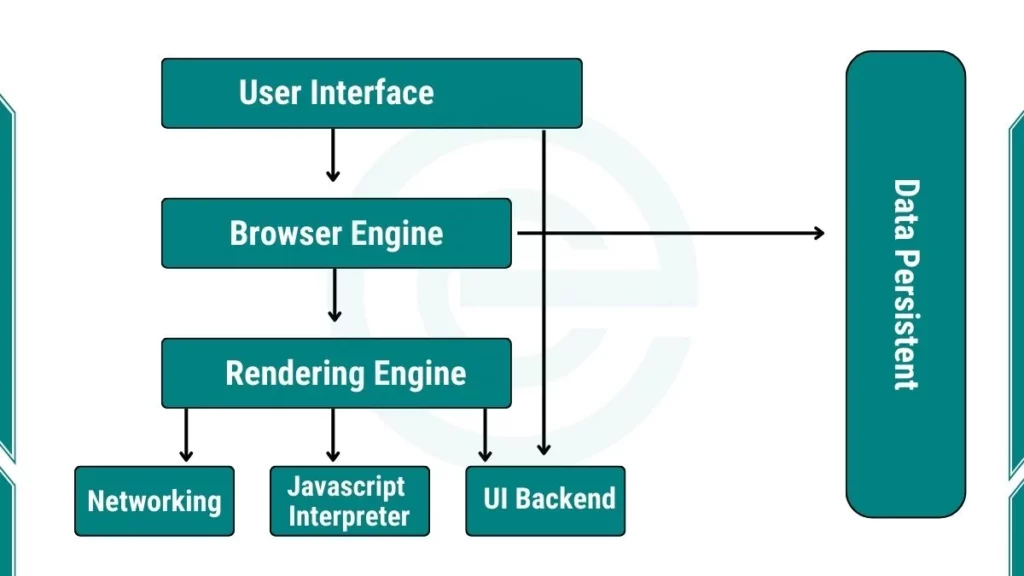
A browser isn't just one giant program; it’s a collection of specialized components that talk to one another. Let's take high-level look at the core architecture of the Browser
The User Interface (UI): This includes everything you see except the actual page window itself. It consists of the address bar, tabs, back/forward buttons, bookmark menus, and the refresh button.
The Browser Engine: The "manager" component. It marshals actions between the User Interface and the Rendering Engine.
The Rendering Engine: The core muscle of the browser. It is responsible for displaying the requested content. If you request HTML, it parses the HTML and CSS and draws the pixels on your screen.
Networking: Handles internet communication, security, and protocols (like HTTP/HTTPS). It’s what fetches the data from the web.
JavaScript Engine: A specialized interpreter that executes your JavaScript code (e.g., V8 in Google Chrome or SpiderMonkey in Firefox).
UI Backend: Used for drawing basic widgets like combo boxes and windows, utilizing the operating system's underlying user interface methods.
Data Storage: A lightweight database layer inside the browser (like localStorage, sessionStorage, and IndexedDB) to save data locally.
Difference b/w Browser Engine & Rendering Engine
It’s very easy to get confused between these two, but they have distinctly different roles :
The Browser Engine is the structural coordinator. When you click "refresh" on the UI, the Browser Engine tells the rendering engine to reload. It acts as the intermediary.
The Rendering Engine is the visual artist. It takes the code files and turns them into pixels. Different browsers use different rendering engines. For instance, Google Chrome and Microsoft Edge use Blink (part of the Chromium project), Apple's Safari uses WebKit, and Mozilla Firefox uses Gecko.
Networking: Fetching the Ingredients
Before a browser can build a webpage, it needs the raw ingredients: HTML, CSS, and JavaScript files.
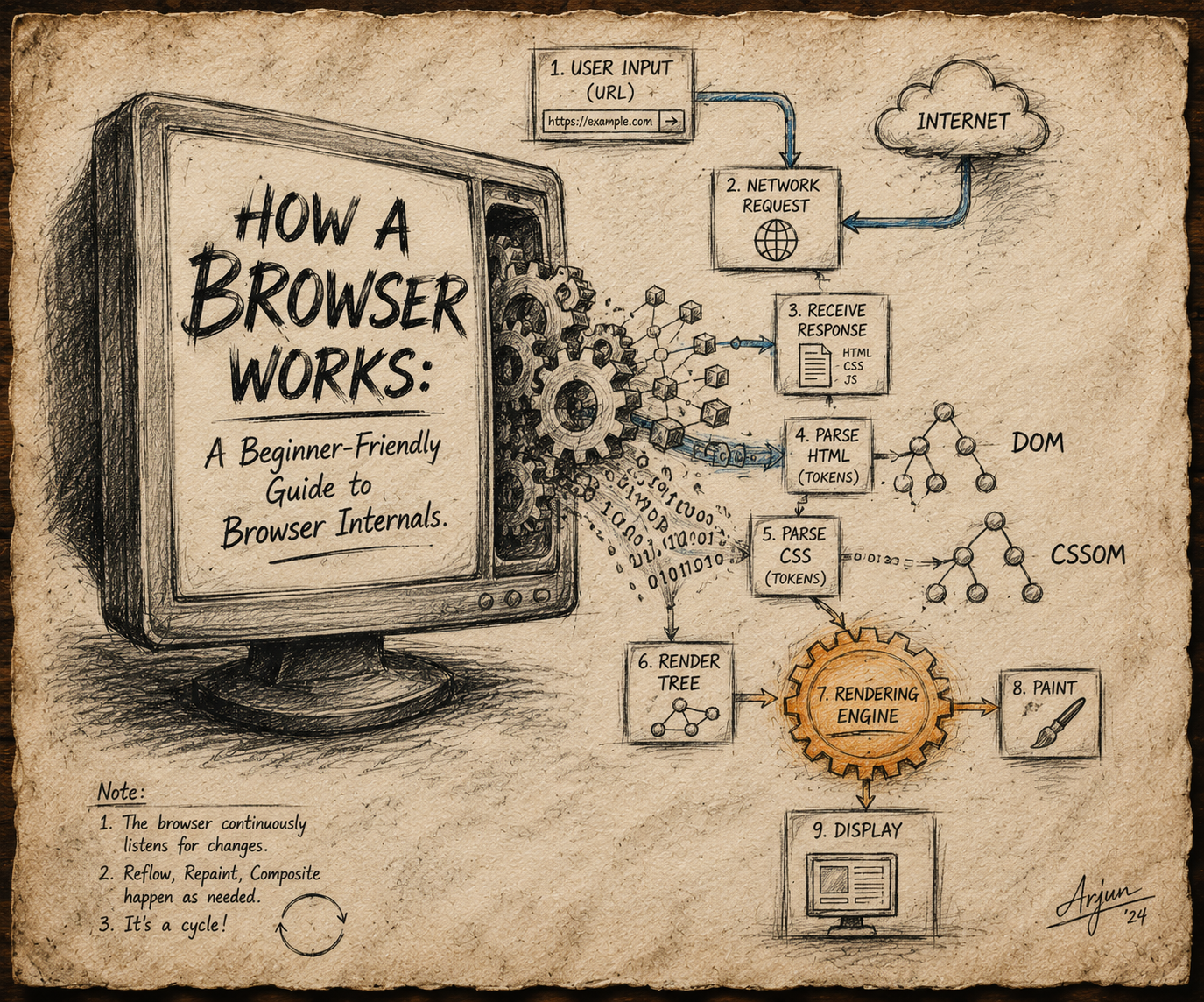
When you type a URL and hit Enter, the browser's Networking component springs into action. It contacts the destination server over the internet using standard protocols, asks for the files, and receives them back as packets of data. Think of this like ordering a flat-pack furniture kit online—the networking layer is the delivery truck that drops the box off at your front door.
What is "Parsing" Anyway?
Once the browser receives the raw text data from the network, it has to make sense of it. This process is called parsing.
A Simple Analogy:
Imagine reading a sentence: "The cat sat on the mat." Your brain automatically breaks this sentence into parts—a subject (the cat), an action (sat), and a location (on the mat)—to understand the meaning.
In computer science, parsing works exactly the same way. The browser takes a sequence of characters and breaks it down into a structured meaningful format. For example, if a math parser sees the expression 2 + 3 * 4, it parses it into a hierarchical "expression tree" based on math rules, ensuring it multiplies 3 * 4 before adding 2.
HTML Parsing and the DOM Creation
The first file the browser parses is the HTML file. The browser reads the HTML tags and converts them into a massive tree structure called the DOM (Document Object Model).
Analogy: Think of the DOM as a family tree.
If you have a
<body>tag, and inside it you put a<div>containing an<h1>and a<p>, the DOM views<body>as the grandparent,<div>as the parent, and<h1>and<p>as sibling children.
                      body
                       |
                       |
                      div
                      / \
                     /   \
                    h1    p
Every element on your page becomes a "node" in this interactive tree. The browser does this because it can't style raw text; it needs a structured, organized map of your content.
CSS Parsing and the CSSOM Creation
While building the DOM tree, the browser encounters style tags or external stylesheets. It immediately kicks off a parallel process to parse the styles into a separate tree: the CSSOM (CSS Object Model).
Just like the DOM, the CSSOM is a tree structure, but it maps out the styling rules. It calculates exactly which styles apply to which elements, resolving things like inheritance (e.g., if the <body> has a font color of blue, its children inherit that blue color unless specified otherwise).
Combining DOM and CSSOM into the Render Tree
Now the browser has two separate maps: a map of the content (DOM) and a map of the styles (CSSOM). To display the page, it merges them together to create the Render Tree.
The Render Tree only contains elements that will actually be visible on the screen.
If an element has
display: none;in the CSS, it will be skipped entirely and won't appear in the Render Tree.However, elements with
visibility: hidden;will be included, because they still take up empty space on the layout!
Layout, Paint, and Display
With the Render Tree ready, the browser executes the final three phases to turn the mathematical map into visual pixels:
Layout (Reflow): The browser starts at the top of the Render Tree and calculates the exact geometry of every single element—its exact size and exact position on the screen relative to the viewport. This is like drafting the architectural blueprint of where every room and piece of furniture goes.
Painting: Once the layout is calculated, the browser fills in the pixels. It draws the text, colors, backgrounds, borders, shadows, and images. This happens in layers to handle overlapping content efficiently.
Display (Compositing): Finally, the browser flattens all the separate layers together and sends the final image to your computer screen.
And Finally, the webpage is displayed. 🥳