Introduction
If you’ve ever built a website from scratch, you know the routine: opening tags, typing content, closing tags, adding class names, double-checking syntax, and repeating the process dozens of times. Writing HTML manually can quickly feel like a slow, repetitive chore that drains your focus away from designing and building.
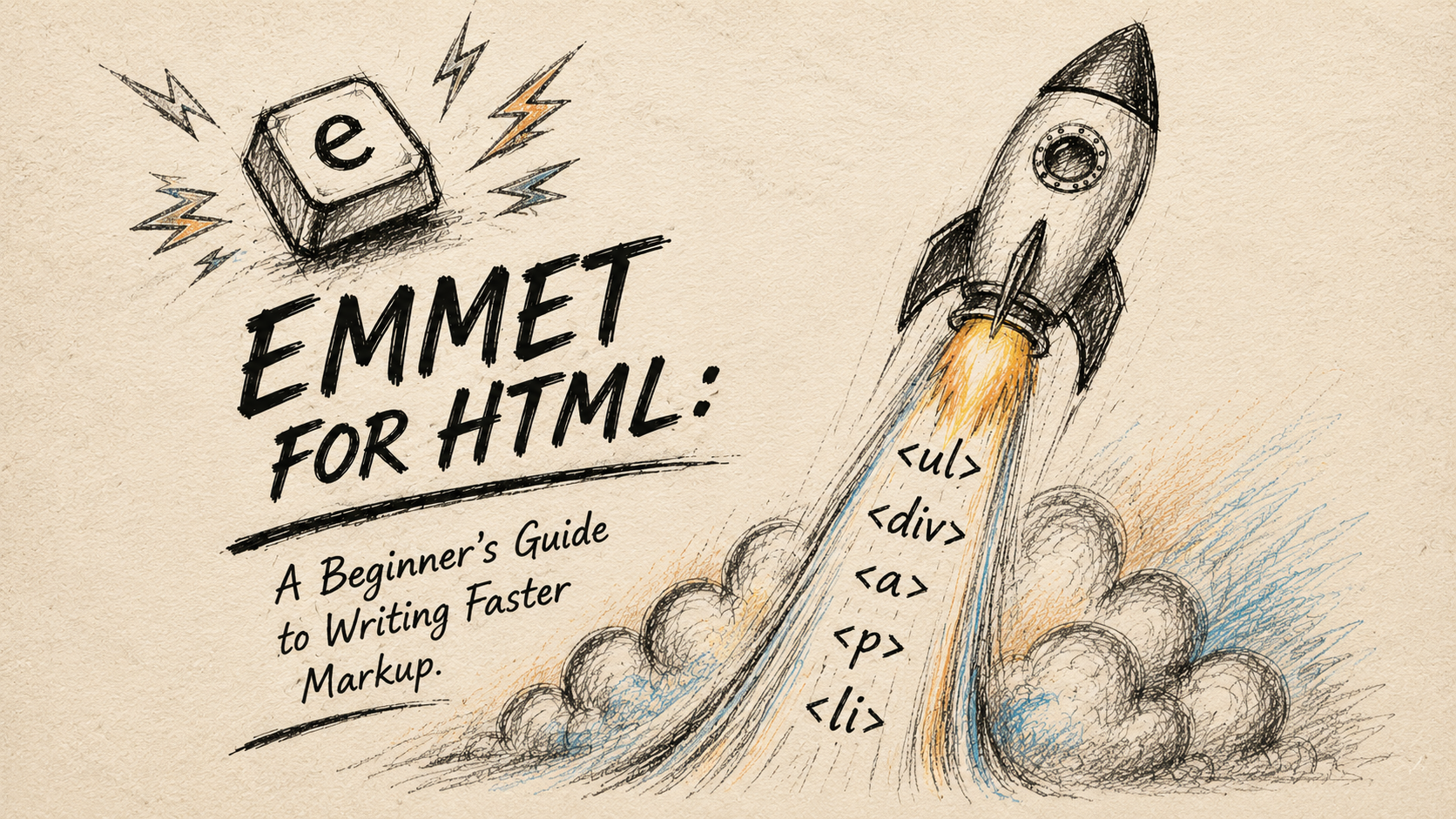
Enter Emmet—the ultimate productivity toolkit for web developers.
In this guide, we’ll break down what Emmet is, how it works in modern code editors, and how you can use simple abbreviations to write HTML at lightning speed.
What is Emmet?
At its core, Emmet is a shortcut language for HTML.
Instead of typing out long, boilerplate markup line by line, Emmet allows you to type short, intuitive snippets (abbreviations) and hit Tab or Enter to expand them into full HTML structures instantly. Think of it as shorthand or text expansion specifically designed for web code.
Why Emmet is Useful for HTML Beginners
When you’re starting out with web development, typing out every <header>, <div>, <ul>, and <li> tag manually can slow down your momentum. Emmet helps beginners by:
Eliminating Boilerplate Fatigue: Focus on the structure and styling of your site rather than typing repetitive tags.
Reducing Syntax Errors: Since Emmet auto-generates balanced opening and closing tags, you’ll spend less time fixing missing closing brackets (
</...>).Increasing Speed: Seeing complex HTML layouts appear in a single keypress makes coding feel faster and much more satisfying.
Note:
Emmet is completely optional, but once you start using it, you’ll rarely want to go back to typing raw HTML manually.
How Emmet Works Inside Code Editors
The beauty of Emmet is that you usually don't need to install anything extra. Most modern code editors—including VS Code, WebStorm, and Sublime Text—come with Emmet pre-installed out of the box.
The Typical Emmet Workflow:
Type an abbreviation in an HTML file (e.g.,
p).Press the expansion key (
TaborEnter).Watch it instantly transform into full HTML markup (
<p></p>).
[ Emmet Abbreviation ] ---> Press [Tab] / [Enter] ---> [ Full Expanded HTML Markup ]
Basic Emmet Syntax and Abbreviations
Getting started with Emmet is straightforward because the abbreviations mimic CSS selectors. If you know how to target an element in CSS, you already know most of Emmet!
1. Creating Basic HTML Elements
To create any standard HTML tag, simply type the tag name without brackets and press Tab.
- Emmet Abbreviation:
h1
- Expanded HTML:
<h1></h1>
- Emmet Abbreviation:
button
- Expanded HTML:
<button></button>
2. Adding Classes, IDs, and Attributes
Just like in CSS, use . for classes and # for IDs.
Adding Classes (.)
- Emmet Abbreviation:
div.card
- Expanded HTML:
<div class="card"></div>
Pro Tip:
If you omit the element name before a
.or#, Emmet defaults to a<div>! So typing.containerexpands to<div class="container"></div>.
Adding IDs (#)
- Emmet Abbreviation:
section#hero
- Expanded HTML:
<section id="hero"></section>
Combining Classes and IDs
- Emmet Abbreviation:
div#profile.user-card.active
- Expanded HTML:
<div id="profile" class="user-card active"></div>
Combining Classes and IDs
- Emmet Abbreviation:
div#profile.user-card.active
- Expanded HTML:
<div id="profile" class="user-card active"></div>
3. Creating Nested Elements (>)
To place an element inside another element, use the child operator (>).
- Emmet Abbreviation:
nav>ul>li
- Expanded HTML:
<nav>
  <ul>
    <li></li>
  </ul>
</nav>
4. Repeating Elements Using Multiplication (*)
When you need to create multiple identical elements—like a navigation bar with multiple menu items or a list—use the multiplication symbol (*).
- Emmet Abbreviation:
ul>li*4
- Expanded HTML:
<ul>
  <li></li>
  <li></li>
  <li></li>
  <li></li>
</ul>
5. Generating Full HTML Boilerplate with Emmet
Setting up the starting template of an HTML page every single time can be tedious. Emmet allows you to generate a full, modern HTML5 document structure in less than a second.
- Emmet Abbreviation:
!
- Expanded HTML:
<!DOCTYPE html>
<html lang="en">
<head>
  <meta charset="UTF-8">
  <meta name="viewport" content="width=device-width, initial-scale=1.0">
  <title>Document</title>
</head>
<body>

</body>
</html>
Combining It All Together
Let's look at how combining these simple shortcuts allows you to build a full navigation component in one quick line.
- Emmet Abbreviation:
header.site-header>nav.navbar>ul.nav-list>li.nav-item*3
- Expanded HTML:
<header class="site-header">
  <nav class="navbar">
    <ul class="nav-list">
      <li class="nav-item"></li>
      <li class="nav-item"></li>
      <li class="nav-item"></li>
    </ul>
  </nav>
</header>
Summary
Emmet isn't a new programming language—it's simply a tool built to make your development workflow smoother and faster.
Start with basic tags (
p,h1,a).Practice adding classes and IDs (
.box,#main).Build lists and nested structures using
>and*.
Open up your code editor (like VS Code), create an index.html file, type !, press Tab, and start experimenting with these abbreviations today!